
Getting started
OpenPicker is an open-source CSS element picker for the web. It has two parts:
- A browser extension that renders the whole picking experience — a hover highlight, a sidebar inspector, a DOM-tree navigator, a live match count, and per-site selector settings.
- A tiny SDK (
@openpicker/sdk) that lets a web app start a pick and receive the resulting selector.
You can pick in two ways: straight from the toolbar (no code), or programmatically via the SDK.
Install the extension
Install OpenPicker from the Chrome Web Store — it works in Chrome, Edge, and other Chromium browsers. You'll see the OpenPicker icon in the toolbar.
Build from source (for development)
Prefer to build it yourself, or working on OpenPicker?
- Clone the repo and build the extension:bash
pnpm install pnpm --filter @openpicker/extension build - Open
chrome://extensionsand enable Developer mode (top right). - Click Load unpacked and select
packages/extension/.output/chrome-mv3.
Pick from the toolbar
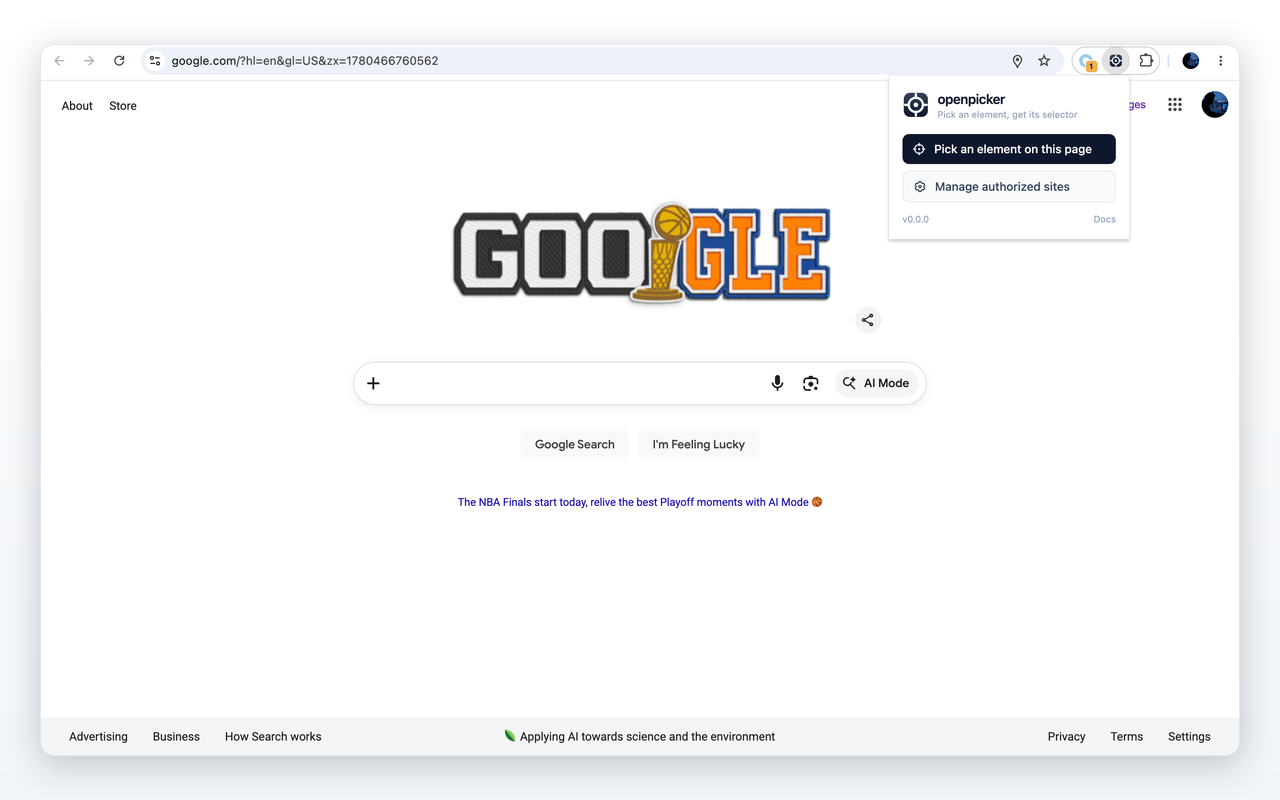
- Open any page.
- Click the OpenPicker toolbar icon → Pick an element on this page.
- Hover to highlight, click to select, refine in the sidebar if needed.
- Click Copy — the selector is on your clipboard.
That's it — no code required. See Using the picker for the full flow.
Pick from your app (SDK)
Install the SDK and start a pick. The extension opens the URL, the user picks there, and the selector comes back to your app:
bash
npm install @openpicker/sdkts
import { createOpenpicker } from "@openpicker/sdk"

const op = createOpenpicker({ appName: "My App" })

if (await op.isAvailable()) {
  const { selector, matchCount } = await op.pick({ url: "https://app.example.com" })
  console.log(selector, matchCount)
}
See the SDK reference for the full API.
Try it now
The live demo is a real caller of @openpicker/sdk — install the extension, then run a pick from the demo.